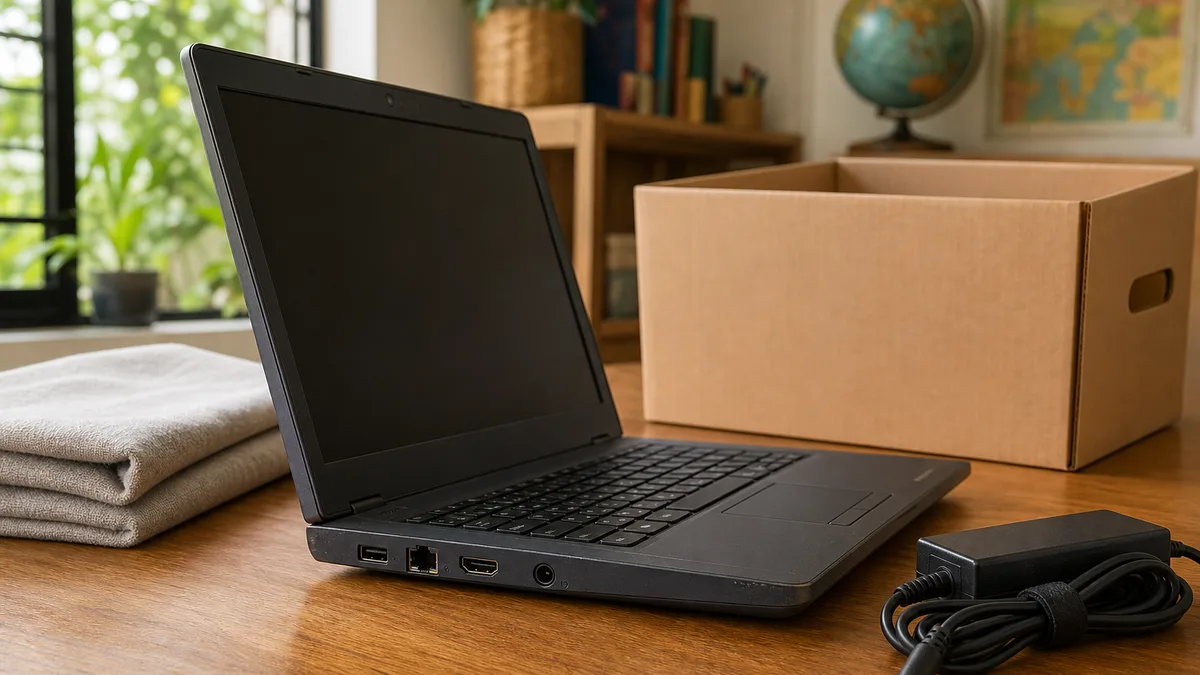
An old laptop can retain personal information even when it no longer turns on, has no password, or appears empty. It can also contain a damaged battery that completely changes how it should be handled. That is why donation does not begin with shipping: it begins with an inquiry, a verified backup, account sign-out, and a deliberate decision about storage.
Crezendo is the first place to ask about a potentially reusable laptop in Panama. Use the donation form to describe the device and ask about current options. Submitting it does not guarantee acceptance, pickup, repair, reuse, data erasure, transfer to another person, or a receipt. Wait for confirmation and instructions before delivering or shipping anything.
What to report before offering the laptop
An accurate description supports a decision without promising an outcome. Gather, when possible:
- Exact brand and model; provide a complete serial number only through a private channel if requested.
- Operating system and edition, if the device still starts.
- Processor, RAM, and storage type/capacity if known.
- Whether it powers on, charges, displays an image, and reaches the sign-in screen.
- Condition of the display, keyboard, touchpad, hinges, case, ports, webcam, and Wi-Fi.
- Whether storage remains installed or was removed.
- Available charger, its power rating, and cable condition.
- Battery state: normal, does not hold charge, not detected, removed, swollen, wet, or visibly damaged.
- Known repairs, impacts, liquid exposure, heat, odor, smoke, or intermittent failures.
- Clear pictures of the device, model label, charger, and damage; do not publicly show names, email addresses, keys, QR codes, or a full serial number.
State what you do not know. “It does not start, and I could not verify the data” is more useful than claiming that it is clean. Crezendo can use that information to answer whether the conversation should continue, but an inquiry is not acceptance.
Confirm ownership and remove administrative locks
Donate only equipment you own or are authorized to transfer. A business, school, leased, or financed laptop may retain an asset tag, remote management, encryption, volume license, or return obligation.
Before erasing it:
- Obtain authorization from the registered owner.
- Record the asset and its disposition under the applicable policy.
- Remove it from MDM, Windows Autopilot, Apple Business/School Manager, Chromebook management, or another platform only through its legitimate administrator.
- Retain release evidence when the organization requires it.
- Do not bypass passwords, Activation Lock, BitLocker, firmware passwords, or enterprise enrollment.
A local reset does not always clear a server-side lock. Transferring a device still associated with an account or organization may prevent reuse and expose administrative information. For multiple units, review the path for donating laptops after a business refresh before preparing the batch.
Back up and prove you can restore
Responsibility for the data remains with the owner. Do not assume the recipient will erase the drive, and do not hand over a password so someone else can do it.
Copy documents, photos, local email, projects, bookmarks, keys, databases, Downloads, and custom folders to another approved medium or service. Then perform a real test:
- Open a sample directly from the copy.
- Restore several files to another folder or device.
- Confirm that the backup includes data outside Documents and Desktop.
- Verify access to encrypted files and retain recovery keys separately.
- Record applications and licenses that a folder copy does not restore.
- Document anything excluded or unreadable.
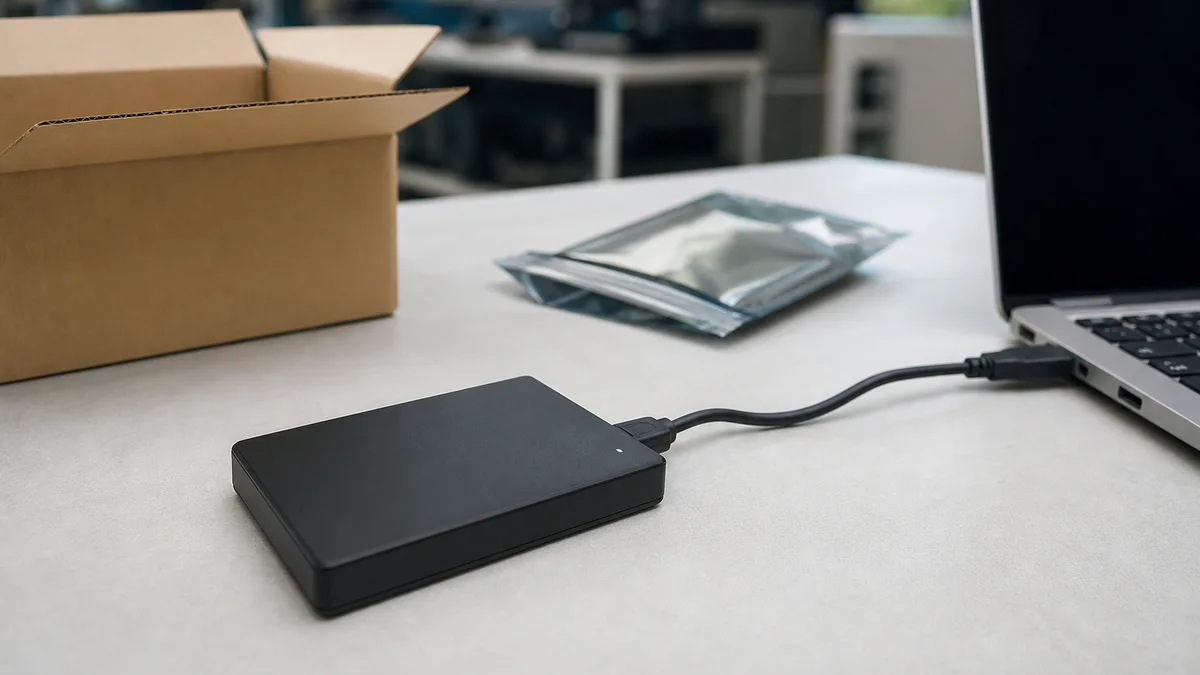
A cloud sync icon does not prove every file finished uploading. An external disk you never tested does not prove recovery either. Keep the copy disconnected during erasure and do not include it in the donation.
Sign out and separate the laptop from your accounts
Deleting files manually is not enough and, with synchronized services, can also delete them from the cloud. First confirm the backup, then follow the manufacturer’s current transfer instructions.
Review these associations:
- Microsoft account, Apple Account, or Google Account.
- Password managers, browsers, and synchronized profiles.
- Email, messaging, video calls, cloud storage, and work tools.
- Applications with limited activations or device authorization.
- VPNs, certificates, SSH keys, tokens, passkeys, and authenticators.
- Find My/Activation Lock and trusted-device lists.
- Printers, Bluetooth accessories, and device names containing personal information.
Signing out reduces associations but does not sanitize storage. Resetting the device reduces local data but does not revoke every remote session. Do both, and verify from another device that the laptop no longer appears as an active session or trusted device where appropriate.
Choose erasure based on the system, medium, and sensitivity
Sanitization means making access to data infeasible for a defined level of effort. No universal command is correct for every HDD, SSD, eMMC device, or soldered storage module. The method depends on data sensitivity, encryption, media condition, and whether the result can be verified.
Windows
After backing up and retaining the required BitLocker key, use official recovery options. Reset this PC > Remove everything removes personal files, applications, and settings. The clean-data option makes casual recovery harder, but Microsoft states that this consumer feature does not meet government or industry erasure standards.
Review which drives are included before confirming. If the device contains business, medical, fiscal, privileged credential, or regulated data, apply the organization’s sanitization policy or retain the storage. Do not claim certified erasure merely because Reset completed.
Mac
Create a backup and use the official procedure for that Mac model and macOS release. On compatible systems, Erase All Content and Settings signs out of services, disables Find My/Activation Lock, and erases accounts, volumes, and content. Read the scope because it can include more than one volume. Older models require signing out/deauthorizing services and using macOS Recovery to erase and reinstall.
When Setup Assistant appears, do not create another account; shut the computer down for its next owner. If you cannot remove Activation Lock with the legitimate account, stop.
Chromebook
Sync required information and copy Downloads because Powerwash erases local data. Sign out and run the official factory reset. If the Chromebook belongs to a school or company, do not try to remove enrollment; its administrator must handle it.
Linux and other systems
Signing out or reinstalling does not by itself prove sanitization. Identify the storage type, encryption state, and manufacturer-supported method. For sensitive information, follow a risk-based policy and record verification; do not run repeated generic overwrites on an SSD and assume every cell was reached.
What if it does not start or you cannot verify erasure?
A laptop that does not power on does not have an empty drive. If storage is removable and you have the skill to remove it without disturbing a battery, you can keep the drive and ask about donating a computer without a hard drive safely. State clearly that the drive is missing, along with any screws or covers removed.
If storage is soldered, the device has a hazardous battery, or opening it may cause damage, do not force it. Highly sensitive data may require specialist assessment before custody changes. Crezendo should not be presented as automatically responsible for recovering, erasing, or certifying unsanitized data.
Keeping the drive is valid when you cannot demonstrate erasure. You can also choose a documented sanitization or destruction process appropriate to the media and policy. The important point is not to transfer data for convenience.
Battery: inspect before powering on or packing
A swollen lithium-ion battery is damaged and can be a fire hazard. Look without pressing the case:
- Raised touchpad or keyboard.
- Base or display that no longer closes flat.
- Gaps in the enclosure.
- Abnormal heat, sweet/chemical odor, smoke, hissing, leakage, or corrosion.
- Impact, puncture, fire, or water damage.
If any sign appears, do not power on, charge, crush, puncture, open, or attempt to remove the battery without proper preparation. Keep it away from combustible materials to the extent reasonably safe, and seek local emergency guidance if there is heat, smoke, or fire. Disclose the damage in the inquiry and wait for instructions; do not deliver, pack, or ship it on your own initiative.
Damaged lithium batteries are subject to special transport restrictions and may be prohibited by air. Rules depend on the carrier and route. A response that Crezendo may consider the device does not automatically authorize shipping it.
Do not put a laptop or lithium battery in household trash or ordinary curbside recycling. If Crezendo confirms that it cannot use the equipment, specialized electronics/battery handling is the final alternative, following local rules and keeping the battery out of general waste.
Assess condition without making it worse
If the battery and cable look normal, a short test may help, but do not repair or energize wet equipment or a device showing danger signs. Record:
| Condition | What you can verify | What to disclose |
|---|---|---|
| Working | Startup, display, keyboard, network, ports, charging | Intermittent faults, removed passwords, and erasure method. |
| Starts with faults | Lights, fan, image, codes, or messages | Exact symptom and when it occurs. |
| Does not start | Visual state and charger response, only if safe | Last known use, impact, liquid, and unsanitized data. |
| No storage | That the drive was removed | Missing drive type and any removed covers/parts. |
| Damaged battery | Safe visual inspection only | Swelling, heat, odor, leakage, water, or damage; do not ship without instructions. |
No age, brand, or specification guarantees usefulness or acceptance. A slow laptop may be diagnosable, while a newer one may be unsafe or impractical. To decide what to do with an old laptop, use this same guide and describe the device's real condition: the decision requires information about data, storage, battery, function, and accessories.
Which accessories to prepare
List accessories that actually belong to the laptop:
- Correct charger, with no exposed copper, overheating, or improvised repairs.
- Model-specific adapters or dock, when their relationship is clear.
- Removed screws, covers, or trays, bagged and labeled.
- Ownership or license documentation only if requested through a private channel.
Do not include USB drives, external disks, SD cards, SIM cards, password notes, or backup media. Remove labels containing names, companies, phone numbers, asset codes, or credentials when authorized. Clean only the exterior with the laptop off and avoid wetting ports; never press the case to “fix” a swollen battery.
What donation can and cannot mean
An inquiry may consider different conditions—use, repair, diagnosis, parts, or no viable use—but this article cannot state which outcome will happen. It also cannot promise that a laptop will reach a student, create a particular impact, or be processed within a certain time.
The potential benefits of donating used technology depend on acceptance, safety, and a real need for the device. Being transparent about damage, storage, and accessories is more useful than presenting an untested laptop as functional.
Before transferring it, ask in writing:
- Whether the described device is currently being considered for receipt.
- Which components and accessories should accompany it.
- Which data-preparation requirements apply.
- Which delivery or transport instructions are currently valid.
- Which written acknowledgment exists, if any, and whether it has any tax purpose.
Do not assume pickup, covered costs, a receipt, deductibility, data custody, or later erasure. Retain your sanitization evidence and the confirmation you receive.
A prudent inquiry path
- Confirm ownership and remove management/locks with authorization.
- Create an honest inventory and inspect the battery without manipulating it.
- Back up and restore a sample.
- Sign out, revoke access, and sanitize storage according to risk.
- Retain evidence: model, asset, medium, date, method, and verification—never public keys.
- Complete Crezendo’s donation form with condition, general location, accessories, and safe photos.
- Wait for explicit acceptance and instructions before moving, packing, or shipping the laptop.
- If it cannot be used, consider specialized electronics and battery handling as the final alternative.
Frequently asked questions
Does Crezendo accept laptops that do not turn on?
Do not assume so. Describe the model, symptom, storage, and battery in the form and wait for a current response before transporting it.
Can I hand over the laptop without erasing it?
Delegating that responsibility is not prudent. The owner should back up, sign out, and sanitize or retain storage. If that cannot be verified, disclose it and wait for instructions without assuming Crezendo will erase or certify the medium.
Can I donate it without a drive?
You can ask. Removing and retaining a drive is an option when its data cannot be sanitized, provided removal is safe. Disclose the missing storage before any transfer.
What if I do not have the charger?
Include that fact in the description. Do not buy one or connect an incompatible adapter merely to test the laptop. A missing charger confirms neither acceptance nor rejection.
Should I remove the battery?
Not by default. An integrated battery requires the proper tools and procedure. If it is swollen or damaged, do not manipulate or ship the device; disclose the condition and seek safety instructions.
Will I receive an acknowledgment or tax receipt?
Do not assume it. Ask before transfer which document, if any, can be issued, and consult a professional about tax treatment. This article promises neither receipts nor deductibility.
A well-documented, safe laptop with no associated accounts is easier to consider than an unexpected box. The correct action is to ask first, retain control of your data, and wait for specific instructions before transferring the equipment.