Updated August 5, 2026.
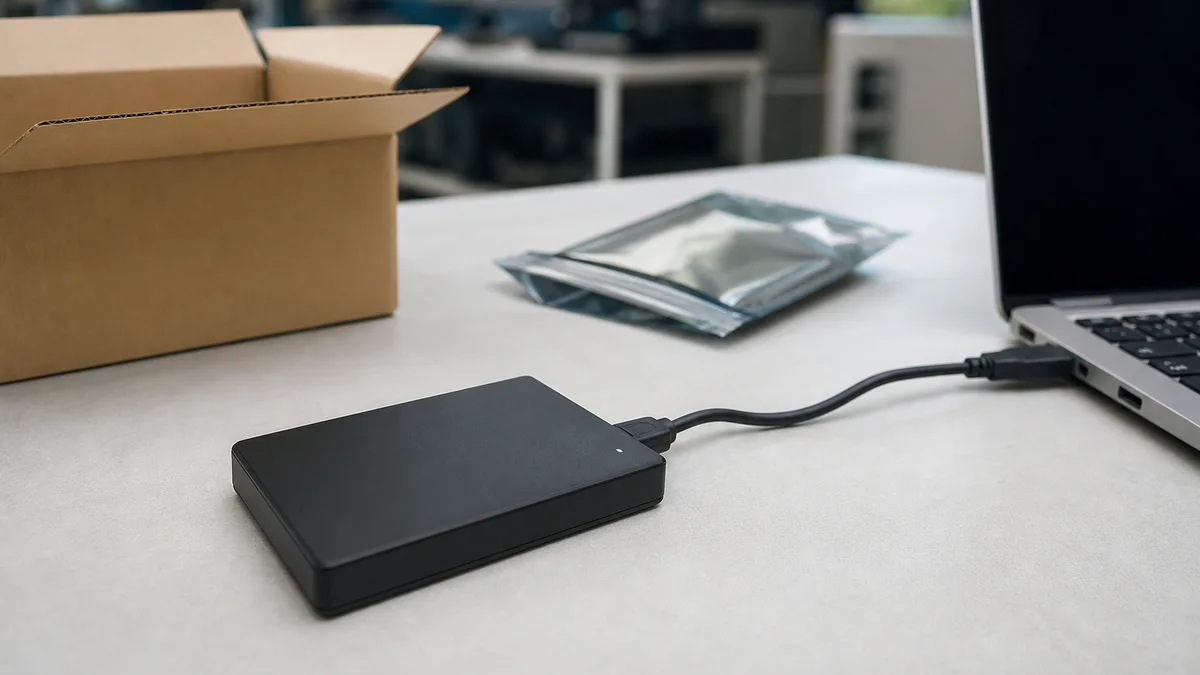
You can ask Crezendo about possibly donating an external hard drive, internal HDD, or SSD in Panama, but you should protect your data first. The safe order is: identify the medium, back it up, test a restore, assess its health, apply appropriate sanitization, and validate the result.
Before transporting the drive, send Crezendo a donation inquiry with its type, model, capacity, connector, condition, accessories, and sanitization status. An inquiry does not mean the device will be accepted. This article also does not present Crezendo as a data-erasure, destruction, recovery, receipt, or certification service.
Quick path based on drive condition
| Situation | What to do first | Ask about a possible donation? |
|---|---|---|
| It operates normally and shows no alerts | Back up, test a restore, sanitize for the medium, and validate | Yes, including model, capacity, and accessories |
| It operates but has SMART errors, disconnects, or abnormal slowness | Copy important data before tests that write; limit use | Yes, after protecting the data and describing symptoms, without assuming acceptance |
| It repeatedly clicks, grinds, was dropped, or is not detected | If the data matters, power it down and evaluate specialized recovery before continuing | Ask only whether evaluation may be possible; do not send it with data and rely on later erasure |
| It contains business, medical, financial, or third-party data | Follow the owner’s policy and obtain IT or security authorization | Only after validated sanitization and authorization to release the medium |
| You cannot back it up or validate sanitization | Keep the drive or use a professional process appropriate to the sensitivity | Do not transfer it while recoverable information may remain |
This path protects two different things: your data and the device’s potential value. An old-looking drive may still be useful; a drive that powers on may still be unreliable. Evaluation, not age or appearance, should determine the next step.
First: create a backup you can actually restore
Copying files is not enough if you have never checked the copy. Before formatting, repairing, diagnosing, or sanitizing:
- Identify unique files and who owns them.
- Copy them to a different, protected destination. Another folder on the same drive is not a backup.
- Open representative documents, photos, databases, projects, and archives.
- Restore a sample from the backup into another location and confirm that it opens correctly.
- If you have the technical knowledge, compare hashes for important files. A matching hash proves the integrity of those files, not that you remembered to copy everything.
- Leave the original drive unchanged until the restore test passes and your retention period is satisfied.
CISA recommends maintaining encrypted offline copies and regularly testing backups. If the backup also contains sensitive information, protect it; moving files to another unencrypted drive merely moves the risk.
Do not provide passwords, recovery keys, encryption keys, or a content inventory with the drive. Crezendo does not need them to review a donation inquiry.
Assess physical health without increasing the risk to data
Begin with a non-destructive inspection:
- check the enclosure, connector, and cable for impact damage, corrosion, or loose parts;
- confirm that the system detects the expected model and capacity consistently;
- record disconnects, read errors, overheating, or irregular performance;
- review SMART status with a compatible tool, without treating a “PASS” result as a guarantee of future reliability;
- listen for abnormal sounds from a mechanical HDD. An SSD has no platters or motor and should not make mechanical clicking noises.
Seagate warns that a SMART error can predict drive failure even while a drive appears to function. The manufacturer also recommends backing up before diagnostics or repairs: some operations that “fix” errors can make previously readable data inaccessible.
If an HDD grinds, repeatedly clicks, or disconnects and the data matters, power it down. Repeated power cycles, long tests, or opening the sealed assembly may worsen the damage. Decide first whether you need professional recovery. This guide makes no recovery promise and does not describe Crezendo as a recovery provider.
“External” does not tell you whether it is an HDD or SSD
An external drive is storage inside an enclosure, usually connected by USB, Thunderbolt, or another interface. It may contain:
- a 2.5-inch or 3.5-inch magnetic HDD;
- a SATA SSD;
- an NVMe SSD;
- flash memory with a USB controller;
- a drive or enclosure with its own encryption.
Look up the model on the label or in system information. Do not open a drive merely to identify it. Sanitization depends on the medium and its documented capabilities, not on whether the cable is USB.
The following sections cover the practical differences between HDD and SSD media: do not automatically apply a magnetic-drive technique to flash storage.
Deleting, formatting, and sanitizing are not synonyms
Deleting files or emptying the recycle bin changes file-system references; it does not prove that the data is unrecoverable. A quick format is not sanitization by itself either.
The current NIST SP 800-88 Revision 2 organizes sanitization into three methods:
| Method | Objective | Preserves reuse? |
|---|---|---|
| Clear | Protect against simple, non-invasive recovery through logical techniques applied to user-accessible locations | Usually |
| Purge | Make recovery infeasible with current laboratory techniques through a method appropriate to the medium | Potentially |
| Destroy | Make recovery infeasible and leave the medium unusable for data storage | No |
NIST recommends Purge over Clear when possible, but there is no universal recipe. Sensitivity, medium type, model capabilities, and the intended destination determine the method. Destroy eliminates reuse and is not the same as opening a drive for a demonstration.
Choose a method suited to HDD, SSD, or encryption
Working magnetic HDD
An approved logical technique covering the required area can allow reuse. Do not promise success based on a number of passes or a famous utility. Confirm that the tool is appropriate for the model and intended Clear or Purge level, that it completes without errors, and that the result is sufficient for the data’s sensitivity.
SSD and flash storage
Do not automatically apply a multi-pass overwrite recipe designed for magnetic drives. The controller manages cells, remapping, and wear, so writing visible files or sectors does not prove that every relevant area was reached.
Use only a standardized sanitization capability documented for the device, such as sanitize, block erase, or cryptographic erase when appropriate. Confirm the model, firmware, prerequisites, and result. This guide deliberately omits destructive commands that could be run against the wrong drive.
Encrypted drive
Encryption protects data at rest, but it is not automatically proof of sanitization. Cryptographic erase may be appropriate when the drive was correctly encrypted before the data was stored, the encryption scope is known, and the relevant keys can be sanitized under the standard’s conditions.
Turning on encryption at the end, forgetting a password, or deleting one key without checking other copies does not prove that outcome. Microsoft also explains that automatic device encryption does not cover external USB drives; verify each drive separately.
Damaged or undetected drive
If software cannot access the medium, it cannot demonstrate that it sanitized the data. For sensitive information, keep the drive or use a professional process authorized by the owner. Do not drill, smash, burn, or disassemble it as a home solution: you could be injured, release hazardous material, and still fail to validate the result.
Verify and document the result
The tool should report successful completion. Review errors, anomalies, and the device’s final health. Then decide whether the outcome satisfies the sensitivity and intended reuse; otherwise, repeat with an appropriate technique or escalate to a stronger method.
For your own record, save:
- authorized owner and date;
- make, model, capacity, and serial number;
- identified medium type;
- method, tool, and version;
- start and completion times;
- result, errors, and final decision;
- the person who performed and validated the process.
The owner creates and keeps that record. This article does not claim that Crezendo issues destruction records, sanitization certificates, tax acknowledgments, or donation receipts.
What to report and which accessories to include
In your inquiry, mention:
- HDD or SSD, if known;
- make, model, capacity, and interface;
- whether it is external, internal, portable, or desktop-sized;
- whether it is detected consistently and any symptoms;
- whether backup and restore testing completed;
- the sanitization method used and whether it was validated;
- the available USB cable, power adapter, tray, or enclosure.
You do not need to buy missing accessories before asking. Do not include passwords or keys. If you removed the drive and prefer to keep it, see how to donate a computer without its hard drive safely. If you are preparing the whole system, read how to donate a desktop computer in Panama.
What value might the drive have for Crezendo?
A working, sanitized drive might be useful for technical evaluation, refurbishment, lab storage, or learning, depending on its condition and current needs. A failed drive might also have diagnostic or component value, but that should not be assumed.
That is why asking first matters. Crezendo must confirm whether it can evaluate or use that model and coordinate a next step. Data security remains the owner’s responsibility before the medium leaves their control.
When to consider recycling as a last resort
If Crezendo confirms that it cannot use the drive and an appropriate process determines it is not safely reusable, consider a specialized recycler as a last resort. Do not transfer media containing recoverable data. For sensitive information, sanitization and disposal must follow the owner’s policy.
We do not list third-party brands, addresses, or contacts. The primary route is to ask Crezendo first and preserve educational or technical potential when it exists.
Frequently asked questions
Can I donate a used external hard drive to Crezendo?
You can ask. Acceptance depends on the type, condition, data security, and current needs. Submitting the form does not guarantee acceptance.
Should I erase my files before donating the drive?
Back up, test the restore, and sanitize the medium according to its type and the sensitivity of the information. Deleting files or emptying the recycle bin is not enough.
Does formatting permanently remove my data?
Do not assume so. A quick format is not sanitization. Even a more extensive process must be evaluated against the HDD or SSD type, device capabilities, and required protection level.
Can Crezendo evaluate a drive that does not power on or has faults?
You can describe the symptoms and ask. There is no promise of acceptance, diagnosis, recovery, erasure, or destruction. If important data has no backup, address recovery first with an appropriate specialist.
Can I ask without the USB cable or power adapter?
Yes. Say which accessories are missing. Crezendo will confirm whether it can evaluate the set; spare parts are not guaranteed.
Can I also ask about internal HDDs and SSDs?
Yes. Identify the form factor and interface if possible. Each type requires evaluation and sanitization appropriate to its medium.
What should I do with business or confidential data?
Do not release the drive without authorization. Follow the organization’s retention, backup, sanitization, validation, and recordkeeping policies. If you cannot demonstrate an adequate result, keep the medium or use an authorized professional process.
When should a drive be recycled instead of reused?
After protecting the data and confirming that the drive cannot be used safely. Specialized recycling is a last resort, not the first destination.
Ask before bringing the drive
Gather the model, capacity, interface, symptoms, accessories, and backup and sanitization status. Then ask Crezendo about a possible donation. Wait for confirmation before transporting it, and do not include data, passwords, or keys. The inquiry helps determine a possible next step but does not promise acceptance or any erasure, destruction, recovery, or documentation service.