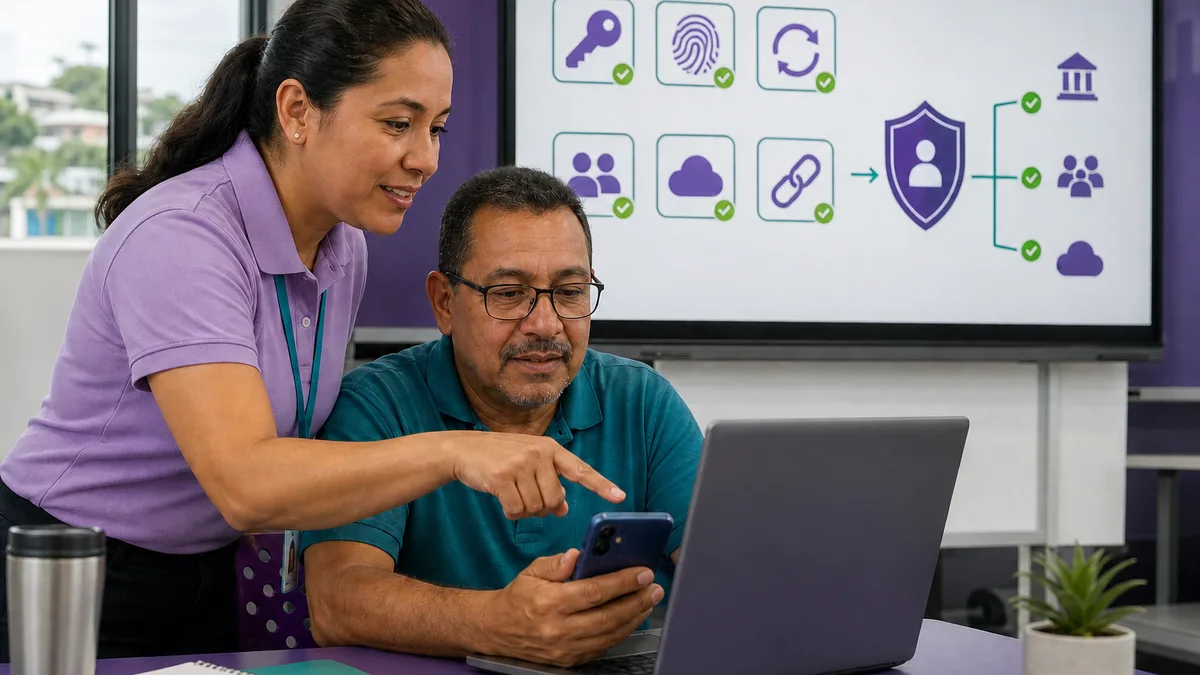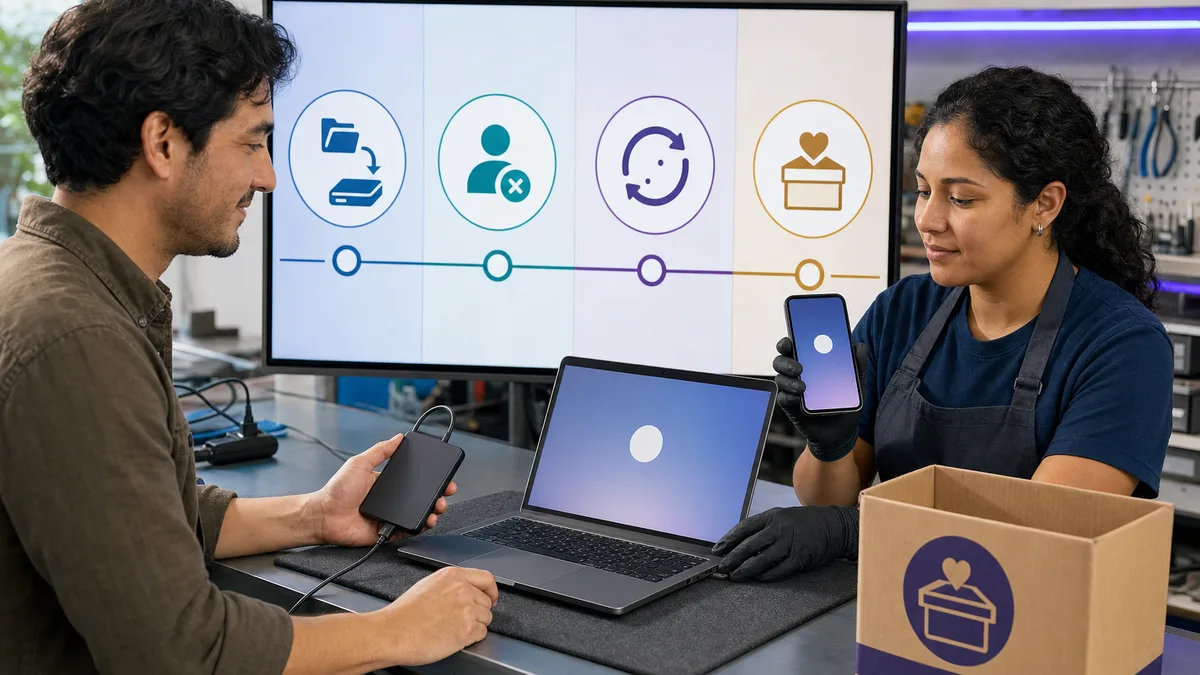
Donating a phone or laptop can extend its useful life, but first you need to protect the photos, documents, passwords, and accounts it contains. This guide explains how to erase your data before donating a phone or laptop without pretending that one procedure works for every device.
Erasure is irreversible. Make a backup, verify that you can open it, and follow the official instructions for your model and software version. If the device belonged to a business, handled regulated information, or contains particularly sensitive data, consult your organization’s policy or a security professional before releasing it.
When you are finished, you can ask Crezendo about donating the device. Acceptance and handling of each device should be confirmed before delivery.
Quick checklist before donating
Complete these steps in order:
- Back up what you want to keep. Include photos, documents, contacts, authentication codes, and files that exist only on the device.
- Open the backup from another device. A “backup complete” indicator is not a substitute for checking that important files are available.
- Transfer critical access. Move authenticator apps, digital keys, wallets, certificates, and licenses you still need.
- Sign out and unlink the device. Review Apple, Google, and Microsoft accounts, browsers, email, and apps containing sensitive data.
- Remove storage and mobile-service accessories. Take out the physical SIM and microSD cards. Manage the eSIM through the operating system or your carrier.
- Use the official erasure procedure. Menus and capabilities vary by manufacturer, model, and version.
- Verify the result. The device should reach its initial setup screen without displaying your account or files.
Do not manually delete synced photos, contacts, or documents while the account is still active. Some services can propagate that deletion to the cloud and your other devices.
First: create and verify your backup
Decide what you need to retain before touching any reset option. A backup can reside in a cloud service, an external drive, or a second computer, but it must be recoverable.
Check at least:
- a sample of your photos and videos;
- important documents;
- contacts and calendars;
- desktop, downloads, and work folders;
- bookmarks or passwords, but only if you know where they will remain protected;
- recovery codes for two-step authentication.
If you are donating an older computer, this guide on how to donate an old laptop safely can help you decide whether to reuse, repair, or responsibly handle its components.
How to erase an Android phone before donating it
Google warns that a factory reset erases data from the phone and recommends knowing the Google Account, its password, and the screen lock before starting. Exact steps vary, so you should also consult the device manufacturer. See Google’s official Android factory-reset guidance.
General procedure:
- Update or complete the backup.
- Confirm on another device that you know your Google Account password.
- Transfer your authenticator app and any service that depends on the phone.
- Review linked accounts and follow the manufacturer’s instructions for removing them when appropriate.
- Remove the SIM and microSD cards.
- In Settings, locate the factory-reset or “erase all data” option.
- Let the process finish without interrupting power.
- When it restarts, do not set the phone up again.
Do not copy a menu path from another model without checking it. Samsung, Motorola, Xiaomi, and other manufacturers may label or locate the option differently. If you recently changed your Google password, review Google’s stated security waiting period before resetting.
If the phone still has practical value, you can also review the criteria for what to do with an old phone based on its condition.
How to erase an iPhone or iPad before donating it
Apple recommends backing up the device, transferring your information, unpairing an Apple Watch when applicable, signing out, and using Erase All Content and Settings. Do not delete iCloud items one by one while you remain signed in, because that deletion could also affect iCloud and your other devices. Follow Apple’s official checklist before giving away an iPhone or iPad.
In general:
- Complete and verify the backup.
- Transfer your information to the new device, if you already have it.
- Unpair an Apple Watch, if applicable.
- Sign out of your Apple Account following the instructions for your software version.
- Go to Settings > General > Transfer or Reset and choose Erase All Content and Settings.
- Enter the requested passcode or password and let the process finish.
- Confirm that the welcome screen appears, without setting it up again.
If you use an eSIM, Apple lets you erase it during this process. First confirm that your line has been transferred. Erasing the profile does not cancel the service plan; contact the carrier for that. Apple provides specific instructions for erasing an eSIM.
How to reset a Windows laptop
Windows 10 and 11 provide Reset this PC. Before using it, back up your files and locate the BitLocker recovery key if the computer is encrypted.
For an ordinary personal donation:
- Verify the backup and sign out of important services.
- Review any licenses that need to be deactivated or transferred.
- Open Settings > System > Recovery > Reset this PC.
- Choose Remove everything.
- Review the options and, when passing the computer to someone else, enable the available data-cleaning option.
- Keep the computer connected to power and wait for completion.
- Stop at the initial setup screen.
Consult Microsoft’s official Reset your PC guide. Microsoft explicitly notes that its included data-cleaning function is intended for consumers and does not by itself meet government or industry data-erasure standards. If the drive contained client records, financial information, health data, trade secrets, or other regulated information, do not handle it as an ordinary household donation.
How to erase a MacBook before donating it
The procedure depends on the hardware and macOS version. Macs with Apple silicon or the T2 Security Chip and compatible software may provide Erase All Content and Settings. Other models require different steps.
The safest route is to identify the model and follow Apple’s official guide for preparing a Mac before giving it away. It covers backup, accounts, service deauthorization, and the correct process for the computer.
After erasure or reinstallation, leave the Mac at the setup assistant. Do not create a temporary account for the next user. If you are evaluating an Apple laptop specifically, also see this guide to donating an old laptop in Panama.
HDD vs. SSD: why the method is not identical
“Formatting” can refer to very different actions, and deleting files or partitions is not automatically the same as sanitizing the media. A magnetic hard disk drive (HDD) and a solid-state drive (SSD) also manage data differently.
For ordinary personal data on a modern device, start with the manufacturer-recommended reset mechanism and verify the result. For sensitive or regulated information, the method must reflect the media type, encryption, device condition, and level of risk. Do not treat old repeated-overwrite tutorials as a universal recipe for an SSD.
NIST SP 800-88 Rev. 2 on media sanitization explains that the procedure should fit both the sensitivity of the information and the storage technology. In a business setting, retain the evidence required by the organization’s policy.
External drives also store copies, histories, and backups. If you have one separate from the computer, review the guide to donating an external hard drive in Panama before including it.
Accounts, SIMs, eSIMs, and memory cards
A reset does not replace checking everything that accompanies the device:
- Physical SIM: remove it before releasing the phone.
- eSIM: transfer the line first; then follow the manufacturer’s process and confirm with the carrier if you also intend to cancel the plan.
- microSD or SD card: remove it and decide separately whether to keep, erase, or donate it.
- accounts: use Apple, Google, and Microsoft account portals to confirm that the device is no longer listed as an active session or trusted device.
- wallets and authenticators: transfer them before erasure, not after.
- browsers: confirm that synced profiles and data remain available only where you actually need them.
To strengthen your habits beyond this one donation, see these practices for protecting your personal data online.
How to verify erasure without exposing your data again
Turn the device on and inspect the first screen:
- it should open at the welcome or setup assistant;
- it should not display your desktop, gallery, email, or profile;
- it should not require the previous owner’s account password before a new user can configure it;
- it should not contain a SIM, microSD card, or external drive you intended to keep.
Do not finish setup using a personal account “just to test it.” If an activation lock or previous account appears, pause the donation and consult the manufacturer’s official documentation.
What if the device will not turn on?
A broken device can still retain data. Do not assume that a damaged screen, discharged battery, or startup failure makes the storage inaccessible.
Do not open, puncture, or destroy the device yourself. A damaged lithium battery can be hazardous, and destroying a component before evaluation can prevent reuse. If the information is sensitive, keep the device or storage media until you receive professional guidance.
Before transporting it, ask Crezendo about the device type and condition and explain that you could not complete the reset. That inquiry is not a sanitization certificate and does not guarantee that the device will be accepted.
Common mistakes to avoid
- Manually deleting photos while they remain synced to the cloud.
- Treating “delete files” or emptying the recycle bin as complete erasure.
- Resetting before transferring a two-step authenticator.
- Releasing the device with a forgotten SIM, microSD card, or external drive.
- Applying an HDD procedure to an SSD.
- Promising that every factory reset makes data “unrecoverable.”
- Assuming the recipient will handle everything without a prior agreement.
- Destroying storage before determining whether the device can be reused.
How to donate the device to Crezendo after erasure
When the device is ready, visit Crezendo’s donation page and describe the device type, its condition, and whether you completed the reset. Wait for confirmation of the applicable steps before sending or delivering it.
Crezendo seeks to help useful technology support educational opportunities. Preparing the device carefully protects your privacy and makes it easier to evaluate whether the equipment can have a second life.
Ask how to donate a device to Crezendo
Frequently asked questions
Does a factory reset always guarantee that nobody can recover my data?
It should not be presented as a universal guarantee. For a modern personal device, use the manufacturer’s official procedure. If the information was especially sensitive or subject to rules, obtain a sanitization method appropriate to the media and risk.
Is signing out and deleting my photos enough?
No. Signing out helps unlink accounts, but you still need to use the device’s erasure process. Deleting individual photos can also affect synchronized copies.
Should I remove the SIM and microSD card?
Yes, unless you deliberately decide to donate the memory card after treating its data. Transfer an eSIM before erasing it, and coordinate any plan change with the carrier.
Can I donate a laptop that does not turn on?
You can ask, but do not release it on the assumption that the data disappeared. Describe the fault and explain that erasure could not be verified. If it held sensitive information, seek professional guidance before giving it up.