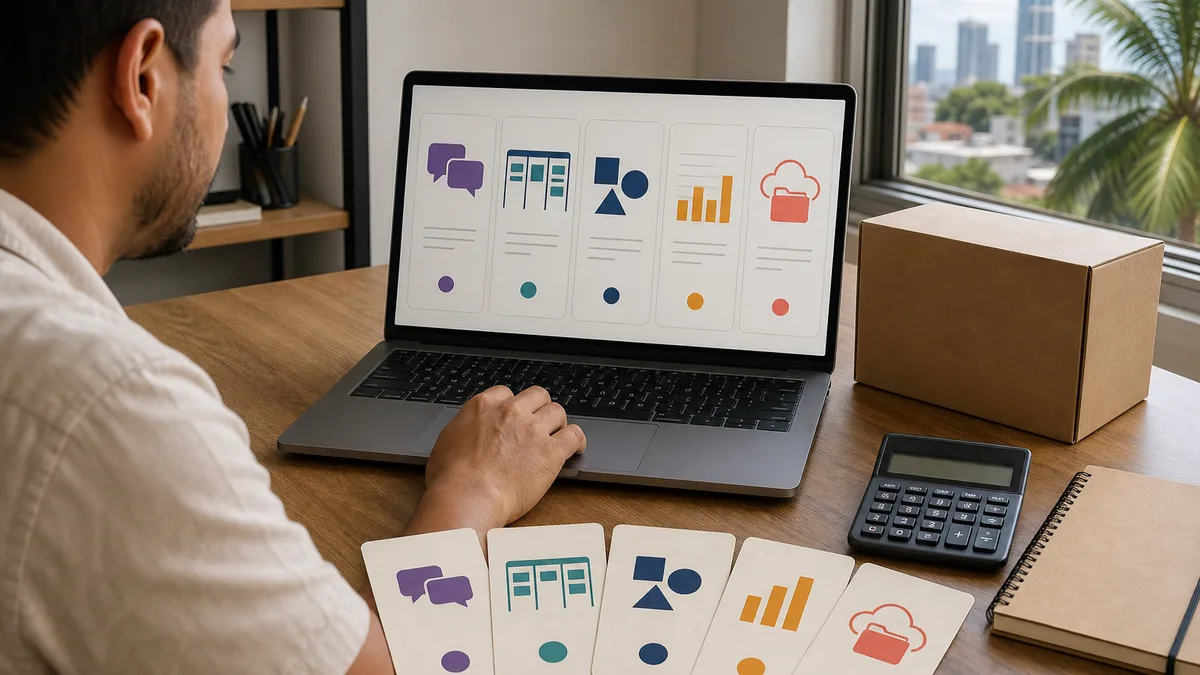
Automating a task does not mean handing an important decision to a tool. It means turning predictable work into a flow with a clear starting point, known rules, verifiable actions, and a person responsible for reviewing the outcome.
The best way to start without coding is to choose one small, frequent task, such as recording form responses in a spreadsheet and notifying the team. Document how it works first, build it with test data, and activate it only when you can detect and correct an error.
What it means to automate tasks without coding
A simple workflow has five parts:
- Trigger: the event that starts the process, such as a new response, a date, or an incoming email.
- Input data: the information the workflow needs.
- Rules: conditions that determine which path to follow.
- Actions: creating a record, updating a row, or sending a notification.
- Verification: evidence that the workflow finished correctly or an alert when it failed.
This structure appears under different names across platforms. Zapier documents a Zap as a trigger followed by one or more actions; Make organizes scenarios through modules; and Power Automate supports flows initiated by events, manually, or on a schedule.
No-code reduces the amount of code you have to write. It does not remove the need to understand the process, configure permissions, test exceptions, and maintain the workflow.
How to identify tasks worth automating
For several days, list the tasks you repeat and assess each one with these questions:
- Does it happen frequently and always begin in a recognizable way?
- Can you explain its rules without vague phrases such as “it depends”?
- Does the input already exist in digital form?
- Can the output be checked easily?
- Would an error be reversible and have limited impact?
- Is there a person who can respond to alerts and changes?
A good first candidate is usually stable, low-risk, and easy to verify. Do not begin with payments, dismissals, legal decisions, security permissions, health data, or mass communications. Do not automate a broken process either: remove unnecessary steps and define who handles each exception first. Our guide to business process optimization can help with that prioritization.
A step-by-step method for designing your first workflow
1. Describe the current process
Write down what starts it, which data you use, which decisions you make, and what the expected outcome is. Include real exceptions: empty fields, duplicate records, incorrectly formatted files, or missing authorization.
2. Draw the flow before opening a tool
Use a simple line:
new response → validate fields → check for duplicate → create row → notify → record result
If you cannot explain the process clearly, a visual interface will not resolve the ambiguity.
3. Define success
Specify what must happen, what must not happen, and how you will verify it. For example: every valid response creates exactly one row, retains an identifier, does not send the notification twice, and exposes an error if the destination does not respond.
4. Choose a tool for your environment
Confirm that it works with the applications your team already uses, supports the necessary rules, and provides history or alerts. Also review who will control the account, where data is processed, and how much maintenance it requires.
5. Connect with the minimum permission
Do not use an account with access to the entire organization when the workflow only needs to read a form and write to a spreadsheet. Keep credentials out of content, restrict permissions, and document who may change them.
6. Test before activation
Test the normal case, a missing required field, a duplicate, and a temporary disconnection. Check both the source and destination systems; a “successful run” screen is not enough if the record is incomplete.
7. Assign ownership and reviews
Define who receives alerts, how often that person reviews execution history, and what they should do when a form, column, or credential changes. An automation without an owner eventually becomes an invisible dependency.
Tutorial: from a form to a spreadsheet and notification
This example works for internal requests, event registrations, or initial inquiries. Adapt it to the tools your organization has approved.
- Prepare the form. Request only necessary data and mark required fields. Explain how the information will be used when applicable.
- Create the destination table. Include columns for an identifier, date, status, permitted data, and workflow result.
- Configure the trigger. Choose “new response” or its equivalent.
- Validate input. If essential data is missing, stop the workflow and record the reason; do not invent a value to keep it running.
- Prevent duplicates. Look up the identifier before creating a row. If it already exists, update it or stop according to the agreed rule.
- Create the record. Map each source field to the correct column.
- Send a brief notification. Include the identifier and a link to the record, not all sensitive information inside the message.
- Record the outcome. Store whether the workflow completed, failed, or requires review.
- Test with fictional data. Confirm field order, dates, duplicates, and failure behavior.
If your need mainly lives in a spreadsheet, you can also learn about automating Excel with macros. In Google Sheets, the official documentation confirms that recording a macro creates an Apps Script project; scheduling it or reacting to events uses triggers, which require permissions and error monitoring.
Automation examples by area
Administration
- Rename and file documents that match a defined pattern.
- Consolidate authorized responses in a table.
- Remind someone to review pending records without approving them automatically.
Sales
- Create a task when a valid inquiry arrives.
- Assign a category using explicit rules, such as area or service type.
- Notify the owner when a request remains unattended.
Customer service
- Confirm that a request was received.
- Route inquiries by category while preserving an identifier.
- Escalate a case that cannot be classified instead of replying with invented information.
Human resources
- Create checklists for approved onboarding processes.
- Send reminders about missing documents.
- Prepare aggregated reports without exposing unnecessary personal data.
Operations
- Notify a team about a predefined date or threshold.
- Synchronize statuses across systems with consistent identifiers.
- Generate a draft report for human review.
How to choose among common tools
| Option | It may fit when | Review before deciding |
|---|---|---|
| Zapier | You need to connect applications through triggers and actions with guided configuration. | Supported apps, permissions, history, actual volume, and conditions. |
| Make | You want a visual scenario with modules, filters, and multiple routes. | Exception complexity, operations consumed, and how easily the team can maintain it. |
| Power Automate | The process is based in Microsoft 365 or needs event-driven, manual, or scheduled flows. | Applicable licenses and connectors, ownership, environments, and organizational governance. |
| Google Sheets and Apps Script | The workflow centers on Workspace and a spreadsheet is the operational source. | Creator permissions, current quotas, failure notices, and sensitivity to column changes. |
| Excel and macros | You want to repeat steps inside controlled workbooks. | Macro security, file location, compatibility, and maintenance. |
| n8n | You need flexible workflows and can evaluate cloud or self-hosting. | Technical administration, updates, credentials, backups, logs, and security. |
Do not choose from a popularity list. Pilot the same use case and compare ease of construction, error handling, permissions, traceability, and total cost at your expected volume. To explore broader possibilities, read our guide to no-code tools for building applications.
How to use AI inside an automation
AI can help classify a message, summarize a document, or prepare a draft. Unlike a fixed rule, its output can vary, so it needs additional controls:
- minimize the data sent and follow your organization's policy;
- define the required output format and what happens if the response is incomplete;
- validate mandatory fields before using the result;
- preserve a review path for uncertain cases;
- do not let it make employment, payment, access, health, or compliance decisions on its own;
- record the workflow version and review samples of its outputs.
A prudent design uses AI to suggest a category and deterministic rules to validate allowed values. When there is no reliable match, the workflow sends the case to a person.
Security, privacy, and continuity
Before connecting business data:
- classify information as public, internal, confidential, or restricted;
- confirm that the platform and connectors are authorized;
- grant the least access possible and avoid personal accounts as permanent owners;
- do not put passwords, tokens, or sensitive data in visible fields;
- enable history, alerts, and stronger authentication where available;
- define retention, backup, and provider-exit procedures;
- test what happens if a service is unavailable or the owner leaves the company.
Execution history matters. n8n, for example, documents reviewing and retrying failed executions, as well as an audit that detects risky nodes and configurations in user-managed instances. Platforms provide different controls, so verify them in current documentation and against your organization's policies.
When no-code is enough and when to ask for help
A no-code workflow is often reasonable when it has few sources, clear rules, limited risk, and an easily verified output. Seek specialized support when it involves many systems, high volume, regulated data, payments, permissions, integrations without a connector, strict continuity requirements, or decisions that affect people.
Asking for help does not mean abandoning no-code. Support may focus on architecture, credential security, testing, process documentation, and training the team that will operate the workflow.
Frequently asked questions
Which work tasks can be automated without coding?
Tasks with a recognizable trigger, digital inputs, stable rules, and a verifiable result. Form registration, notifications, and status updates are usually better pilots than complex decisions.
Which no-code tool is easiest to start with?
It depends on the team's applications, permissions, and experience. The easiest option to build may not be the easiest to govern or maintain.
Can I automate Excel or Google Sheets without writing code?
Yes, for bounded cases: both platforms can record repeatable actions. Advanced rules, integrations, and exceptions may require formulas, Apps Script, VBA, or another tool.
How much does it cost to automate a task?
It depends on the platform, connectors, volume, licenses, implementation, and maintenance. Prices and limits change, so confirm current terms with each provider before deciding.
Is an automation finished once it is activated?
No. It needs an owner, alerts, history, documentation, and reviews whenever the applications or process change.
Primary sources consulted
- What is a Zap: triggers and actions, Zapier Help.
- Types of modules, Make Help Center.
- Run a scheduled cloud flow, Microsoft Learn.
- Automate tasks in Google Sheets, Google Docs Editors Help.
- Installable Apps Script triggers, Google for Developers.
- n8n documentation and security audit, n8n Docs.
Would you like your team to learn how to design secure, maintainable automations? Contact Crezendo to ask about workshops or support. Format, scope, availability, and price are confirmed before any commitment.