Preventive computer maintenance is not about opening every machine every three months, replacing thermal paste once a year, or running commands on a calendar. It is about detecting risk before failure, keeping software and backups healthy, and cleaning or servicing hardware when there is a real need.
This URL received 20 impressions in 90 days for variants of “preventive computer maintenance.” The intent deserves to survive, but the previous guide imposed schedules and procedures that were too rigid. This version uses signals and responsibilities instead of one universal calendar.
Start with what costs the most to lose: data
A computer can be replaced; some files cannot.
Before thinking about fans or thermal paste, confirm:
- which information must be backed up;
- where the backup is stored;
- who can restore it;
- when the last successful backup occurred;
- whether at least one copy does not depend on the same computer;
- whether restoration has actually been tested.
A backup that has never been restored is a hope, not evidence.
Keep the operating system and applications current
Updates correct vulnerabilities, bugs, and compatibility problems. A reasonable process should include:
- a supported operating system;
- an updated browser;
- important applications on maintained versions;
- firmware or drivers when the manufacturer recommends them for a problem or vulnerability;
- removal of software that is no longer used.
In business environments, test changes that may affect critical applications and define who approves restarts or maintenance windows.
Review storage by signals, not rituals
chkdsk /f is not a universal disk-health test and it can modify the file system. It should not be run every month as generic preventive maintenance.
To monitor storage:
- watch for system errors related to disks;
- review free capacity;
- use manufacturer diagnostics when available;
- monitor SMART degradation or alerts with appropriate software;
- investigate unusual noises or slowdowns on HDDs;
- verify that backups are working.
A health warning is not fixed by “cleaning temporary files.” When a device is failing, prioritize data and replacement.
HDDs and SSDs require different approaches
Do not treat an SSD as if it were a mechanical disk.
Modern systems manage storage optimization differently depending on the drive. Avoid turning manual defragmentation into a routine for every computer.
For both types, it is more useful to:
- maintain reasonable free space;
- avoid unnecessary forced shutdowns;
- review errors;
- maintain backups;
- replace the drive when consistent failure signs appear.
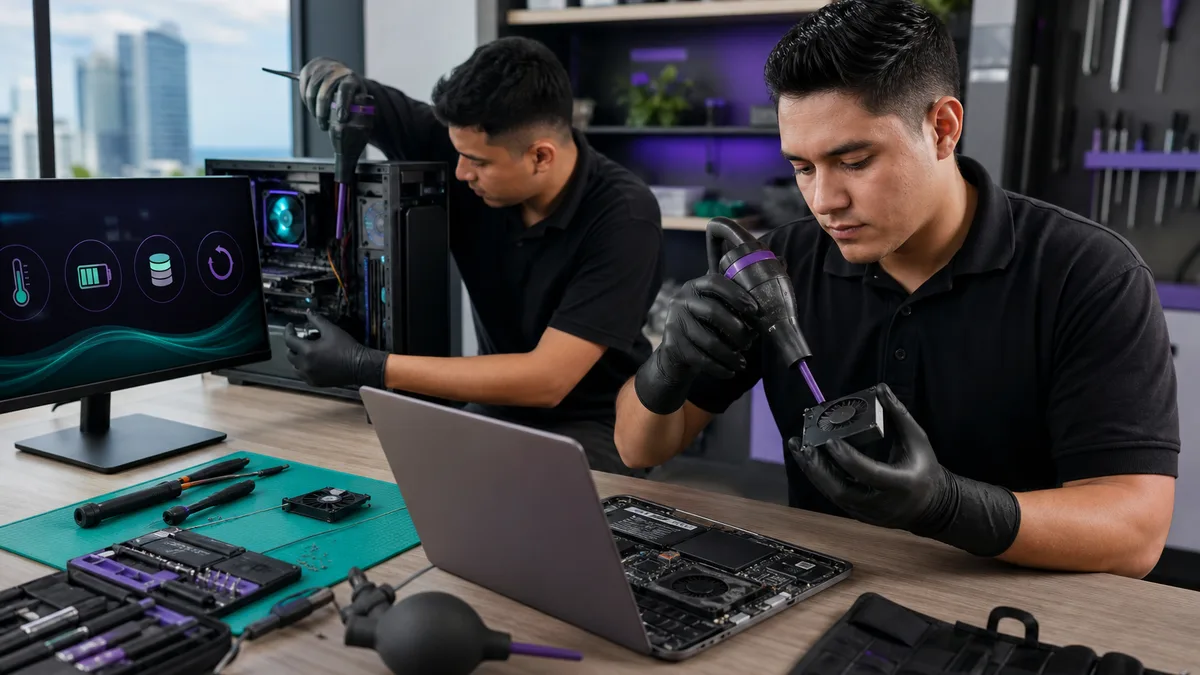
Physical cleaning: power off first and clean when needed
Dust can restrict airflow. Frequency depends on the environment: a clean office, workshop, home with pets, and a computer near the floor accumulate dirt differently.
Before opening equipment:
- shut it down correctly;
- disconnect power and peripherals;
- consult manufacturer instructions for laptops or compact systems;
- avoid spinning fans at excessive speed with air;
- do not force connectors;
- do not use liquid on energized components;
- stop when disassembly requires knowledge or tools you do not have.
For devices under warranty or managed by an organization, confirm who is authorized to open them.
Temperature: measure before intervening
A “high” temperature depends on the processor, workload, thermal design, and manufacturer limits.
Before disassembling:
- identify the component;
- reproduce the workload that creates the problem;
- record temperature and behavior;
- check for throttling, shutdowns, or abnormal fan behavior;
- inspect air intake and exhaust paths.
Replacing thermal paste on a calendar is not mandatory maintenance. It makes sense when a thermal intervention is justified by diagnosis, previous disassembly, degradation, or manufacturer instructions.
Laptop batteries: watch capacity and physical condition
Windows can generate a report with:
powercfg /batteryreport
Use it as information rather than an automatic replacement rule at one percentage.
Also review:
- real-world runtime;
- unexpected shutdowns;
- irregular charging;
- unusual heat;
- case deformation;
- battery swelling.
A swollen battery deserves priority attention and should not continue to be used as though it were merely an autonomy problem.
Physical and electrical safety
Responsible maintenance also considers:
- damaged cables and connectors;
- power supplies with abnormal symptoms;
- overloaded outlets or extensions;
- blocked ventilation;
- liquids near equipment;
- UPS or electrical protection where the context requires it.
Do not open a PC power supply as part of routine cleaning. It can contain electrically hazardous components even after disconnection.
Software maintenance
A simple routine may include:
- checking free space;
- removing unnecessary applications;
- checking updates;
- confirming antivirus is operational;
- reviewing browser extensions;
- verifying synchronization and backups;
- reviewing user accounts that should no longer exist;
- confirming critical applications launch and work.
Do not install “optimizers” merely because they promise to speed up the computer. Adding more software is not automatically maintenance.
A basic inventory is more useful than a perfect calendar
For several computers, record:
| Field | Example |
|---|---|
| Identifier | PC-SALES-04 |
| User/area | Sales |
| Model | device and asset number |
| OS | Windows / Linux / macOS |
| Storage | type and capacity |
| Backup | method and last test |
| Warranty | expiration |
| Problems | temperature, battery, disk, ports |
| Last intervention | date and work performed |
| Next action | review, replace, monitor |
This lets you prioritize equipment by risk instead of opening twenty computers because “quarterly maintenance” has arrived.
A risk-based frequency
Instead of monthly/quarterly/annual rules for everything, define events.
Review frequently
- backups;
- updates;
- storage capacity;
- security alerts;
- failures reported by users.
Review when a signal appears
- temperature;
- fans;
- battery;
- disk errors;
- connectors;
- abnormal performance.
Review after an operational change
- device handoff to another person;
- employee departure;
- major upgrade;
- physical relocation;
- role change;
- end of warranty;
- device retirement.
In Panama: observe the actual environment
Climate, dust, humidity, location, and power quality can influence maintenance, but not every building in Panama has the same conditions.
Instead of assuming one universal tropical rule, observe:
- actual dust accumulation;
- corrosion;
- room temperature and ventilation;
- electrical incidents;
- computers placed directly on the floor;
- enclosed rooms with insufficient airflow.
Intervention should respond to that evidence.
When should you call a technician?
Escalate when you encounter:
- burning smell;
- swollen battery;
- damaged power supply or charger;
- thermal shutdowns;
- repeated storage errors;
- liquid inside the device;
- repair requiring soldering or energized components;
- important data without a backup and evidence of disk failure.
The first priority may be preserving data, not “making it turn on again.”
Maintenance for organizations
An organization also needs clear responsibilities:
- who installs updates;
- who validates backups;
- who administers accounts;
- who may open hardware;
- how incidents are recorded;
- when equipment is replaced;
- how information is erased when a device is retired.
Crezendo maintains training areas related to technology and operational support, but this page does not promise free diagnostics or a permanent maintenance service. Ask about a specific need to confirm scope and availability.
Practical checklist
- backup tested;
- operating system and applications supported;
- antivirus operational;
- free space reviewed;
- disk errors investigated;
- temperature evaluated when there is a signal;
- ventilation unobstructed;
- battery has no deformation;
- cables and power supply show no obvious damage;
- inventory updated;
- interventions documented.
Preventive maintenance works better as a system of observation, backup, and response than as a list of rituals with fixed dates.