Learning Linux is not about memorizing a command list or installing several distributions in one afternoon. Introductory training should help you understand how the system is organized, practice without endangering your main computer, and develop a method for researching, documenting, and correcting problems.
Before enrolling in a Linux course in Panama, define the objective. Someone who wants to use a free desktop needs a different path from someone preparing for server administration, software development, networking, or containers. A serious program states the level, the practice environment, and what participants will be able to demonstrate at the end.
What a beginner Linux course should help you achieve
By the end of a well-structured introduction, you should be able to:
- navigate the filesystem and explain where you are working;
- create, copy, move, and find files without relying on a graphical interface;
- read permissions and distinguish user, group, and others;
- install and update packages from configured repositories;
- identify basic processes, services, and logs;
- consult local help before copying a command from the Internet;
- use administrative privileges only when necessary;
- gather evidence about a problem before changing configuration;
- recognize a dangerous action and stop.
The objective is not to become an advanced administrator in a few sessions. It is to acquire a mental model and habits that support safe continued learning.
The lab should be safe and recoverable
Beginners should practice in a virtual machine, a computer dedicated to learning, or an environment that can be restored. Ubuntu's recent terminal documentation uses a virtual machine specifically to avoid changing the main computer during its exercises.
Before the first practical task, training should explain:
- how to create or restore a snapshot;
- which files belong to the student and which belong to the system;
- when a command modifies data;
- how to confirm the current path with
pwd; - why
sudoshould not be added automatically; - how to stop a process or operation;
- where to keep a lab notebook and exercise backups.
The warning is practical. rm can delete files directly, and rm -r can remove entire directory trees. A good instructor first teaches participants to inspect the path, list the contents, and practice with disposable data.
1. Terminal, shell, and built-in help
The terminal is an interface; the shell interprets commands. Students should learn tools such as:
| Purpose | Initial examples |
|---|---|
| Identify the current location | pwd |
| View contents | ls, ls -la |
| Change directory | cd |
| Create practice files and directories | touch, mkdir |
| Copy or move | cp, mv |
| Read text | cat, less, head, tail |
| Search | find, grep |
| Consult help | man, --help, apropos |
Learning how to read syntax, distinguish arguments from options, and consult the local manual is more important than remembering every switch.
Redirection and pipelines can follow: one command's output can be sent to a file or used as another command's input. Ubuntu's documentation treats these flows as a step after basic navigation and file manipulation.
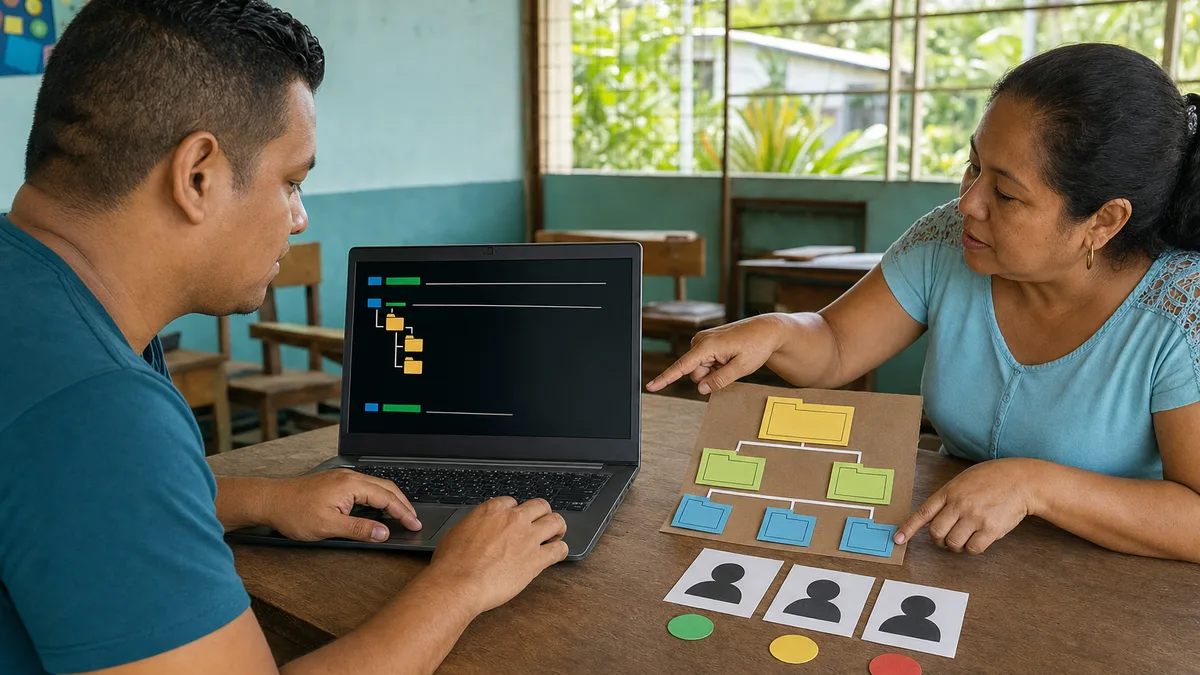
2. Filesystem and paths
Linux organizes files and devices in a tree beginning at /. Training should distinguish:
- absolute and relative paths;
- the home directory and working directory;
- hidden files;
- symbolic links;
- common locations such as
/home,/etc,/var,/tmp, and/usr; - filesystem and external-media mounting, at least conceptually.
Participants do not need to memorize every directory. They do need to know what kind of content to expect and why changing a file under /etc is different from editing a personal document.
3. Users, groups, permissions, and privileges
An introduction should explain read, write, and execute permissions, as well as owner and group. Exercises may include:
- creating a shared laboratory directory;
- observing its permissions with
ls -l; - changing one permission in the practice environment;
- checking which action succeeds and which is denied;
- restoring the initial configuration.
It should also explain the difference between a normal account, an action performed with sudo, and a root session. Always working with maximum privileges hides permission errors and increases the impact of a mistaken command.
4. Packages, repositories, and updates
The program should focus on the package manager for one distribution. For Ubuntu or Debian, that normally includes repository, index, package, dependency, update, and removal concepts.
Participants should be able to:
- identify the installed distribution and version;
- refresh package information;
- find and install a package suitable for the exercise;
- distinguish refreshing indexes from upgrading software;
- review what will change before confirming;
- understand that downloading an unknown script and running it as administrator is not equivalent to installing from a trusted repository.
At beginner level, using one distribution family is clearer. Teaching Ubuntu, Debian, Fedora, and other variants simultaneously can mix commands, locations, and package managers.
5. Processes, services, and logs
A process is a running program. A service generally operates in the background and may start during boot. An introductory path should include:
- listing processes and observing basic resource use;
- identifying a process ID;
- sending a termination signal in a controlled way;
- checking service status;
- starting or stopping a laboratory service;
- reading related logs before changing configuration.
On systems that use systemd, systemctl can inspect and control units, while journalctl displays journal entries. Not every Linux system uses exactly the same combination, so training should declare its environment rather than present one tool as universal.
6. Networking and remote access
Network fundamentals may cover:
- IP address, gateway, and name resolution;
- checking interfaces and routes;
- distinguishing local connectivity, DNS, and application availability;
- testing a connection without confusing a network response with a working service;
- understanding the purpose of SSH before enabling remote access.
A safe exercise can connect to another virtual machine in the lab. Exposing a service to the Internet, changing firewall rules, or opening SSH on a home router should not be an improvised beginner activity.
7. Troubleshooting and documentation
The most transferable skill is not a specific command but a method:
- describe the exact symptom;
- reproduce it;
- record the command and complete message;
- check relevant status, permissions, storage, network, and logs;
- form a hypothesis;
- change one variable;
- verify the result;
- document how to return to the previous state.
A lab notebook prevents repeated attempts and makes it possible to request help with evidence. Copying a solution without understanding its context may hide the problem or create another one.
Practical work that demonstrates learning
A course can conclude with small projects such as:
- organizing folders and permissions for two laboratory users;
- installing a tool from repositories and documenting its removal;
- creating a simple script that checks available space and writes a log;
- starting a local service, checking its status, and finding its messages;
- connecting two virtual machines through SSH with practice keys;
- diagnosing a fault prepared by the instructor and justifying each step.
The result should be observable. “We saw twenty commands” does not demonstrate that a participant can use them.
Questions to ask before enrolling
Ask about:
- distribution and version used;
- delivery format and laboratory environment;
- computer, memory, and storage requirements;
- proportion of theory and practice;
- participants per instructor;
- concrete exercises and final project;
- recovery policy after mistakes;
- required previous experience;
- materials, later access, and support;
- actual scope of any attendance record or certificate;
- content reserved for a later level.
Avoid programs that promise advanced administration without enough practice, encourage administrative commands without explanation, or mix several distributions without clarifying their differences.
What Crezendo currently offers
Crezendo's public catalog includes programming, software engineering, databases and backend, web development, and computer repair. It does not currently announce a permanent standalone beginner Linux cohort.
This guide should therefore not be read as an open enrollment announcement. Review the programming and technical training areas and ask whether a related activity is available or whether Crezendo can prepare a proposal for a group, organization, or specific need.
In your message, state the objective—personal use, development, servers, networking, or administration—current level, number of participants, format, and available equipment. Crezendo can confirm which scope is feasible; an inquiry does not imply a predefined date, price, or certification.
Official sources consulted
- Ubuntu Server: Welcome to the terminal.
- Ubuntu Server: The command line in depth.
- Ubuntu: The Linux command line for beginners.
- Ubuntu Server: Command-line cheat sheet.
- Debian Reference.
- systemd: journalctl manual.
Frequently asked questions
Do I need to install Linux on my main computer?
No. A virtual machine is usually enough to begin and makes it easier to return to a known state. Training should specify the required resources and restoration process.
Which distribution should I learn first?
Choose one with current documentation and an environment consistent with your objective. Ubuntu or Debian are common starting points, but focusing on one family and understanding the concepts is more important than switching frequently.
Must I memorize every command?
No. Learn the fundamental commands, their structure, and how to consult man or --help. The ability to find and verify an option is more useful than memorizing long lists.
Is Linux only for servers?
No. It is also used on desktops, devices, laboratories, development environments, and embedded systems. A server-oriented path will place more emphasis on terminal use, services, logs, networking, and remote access.
Does a basic course make me a system administrator?
No. It provides foundations and initial practice. Responsible administration requires more experience with security, networking, storage, automation, and controlled incidents.
Choose a path you can practice and restore
Define how you want to use Linux and request a program that states its environment, exercises, limits, and observable outcomes. Laboratory safety and the ability to explain each change matter more than the number of commands included.