Replacing a laptop battery can be a reasonable repair, but there is no universal procedure. Two laptops that look similar may use different connectors, screws, adhesives, service modes, and disconnection sequences. The correct reference is the service manual for the exact model, not a generic checklist.
This URL received 9 impressions during the reviewed 90-day window, all related to replacing or locating a laptop battery. The intent is distinct from battery-recycling guides, so the page remains independent, but it no longer teaches readers to open every laptop using the same procedure.
First confirm that the battery is actually the problem
Shorter runtime does not by itself prove that the battery must be replaced. Before ordering a part, separate several possibilities:
- normal capacity degradation;
- faulty charger or cable;
- damaged power connector;
- power-management settings;
- unusually resource-heavy processes;
- firmware or driver problems;
- excessive temperature;
- battery no longer being detected correctly;
- physical damage or swelling.
Use the manufacturer's diagnostics when available. Some laptops expose battery health, cycle count, or estimated capacity through BIOS/UEFI, a manufacturer application, or the operating system.
Reduced capacity and a swollen battery are different situations
A battery that simply lasts less can usually be diagnosed without urgency. A battery that is swollen, punctured, deformed, abnormally hot, or visibly damaged requires a different approach.
Manufacturers such as Dell and HP advise discontinuing use of a swollen battery. Dell also warns not to bend, compress, puncture, or pry against the battery, and not to force a battery out when swelling has trapped it in the chassis.
If the case separates, the touchpad or keyboard lifts, the laptop no longer sits flat, or the display no longer closes correctly, shut the device down and consult the manufacturer's instructions for that model.
See, for example, Dell's official guidance for swollen rechargeable Li-ion batteries and HP's notebook battery swelling guidance.
Identify the exact model before buying anything
Do not buy a battery merely because it looks similar in a photograph.
Record:
- manufacturer and full laptop model;
- Service Tag, serial, or product identifier where applicable;
- part number of the existing battery if it can be read safely;
- nominal voltage;
- capacity;
- connector type;
- compatibility declared by the manufacturer or supplier.
A physically similar battery may use different electronics, voltage, or connector arrangements.
External and internal batteries
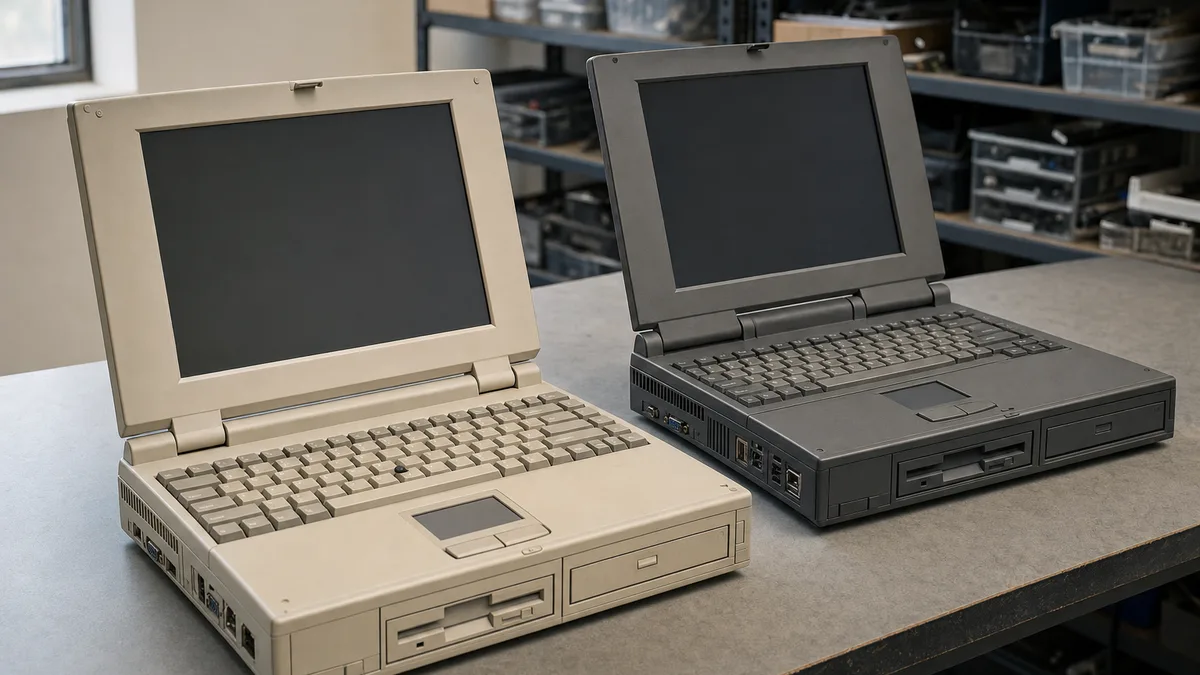
Some older laptops use batteries released with external latches. Replacement can be straightforward when the product manual describes it.
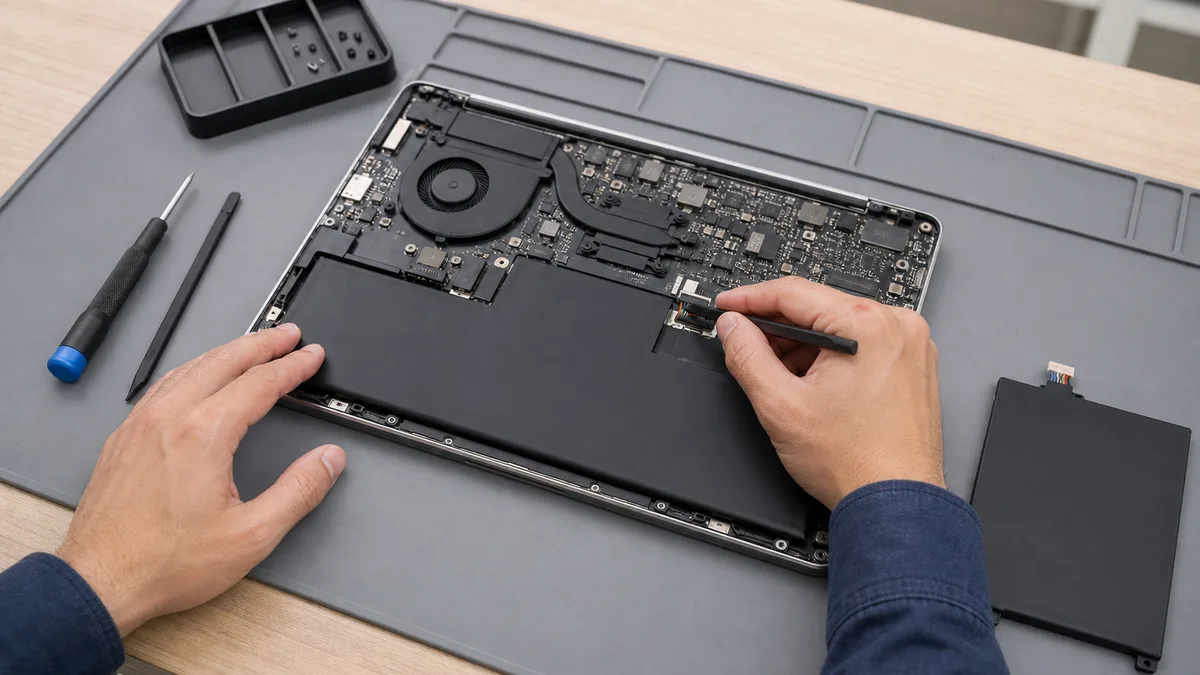
Modern laptops often use internal batteries. Replacement may require:
- removing the bottom cover;
- entering a service mode first;
- disabling the battery through BIOS/UEFI;
- following a specific screw sequence;
- moving cables or brackets;
- replacing adhesive;
- following a documented reconnection sequence.
The right question is not “which screwdriver does a laptop use?” but “what does the service manual for this model require?”
Find the service manual first
Manufacturers publish maintenance documentation for many systems. Search the exact model plus terms such as service manual, maintenance manual, or hardware maintenance manual, preferably on the manufacturer's official domain.
Before opening the computer, confirm that the documentation covers:
- preparation;
- service mode or electrical disconnection;
- tools;
- opening procedure;
- battery location and retention method;
- connector removal;
- replacement installation;
- closing and post-repair checks.
If the manufacturer specifies authorized service for the part, that instruction is part of the repair decision.
Protect data before hardware work
A hardware repair can go wrong even when the storage device is not supposed to be touched.
Before opening a laptop with important information:
- confirm that a recent backup exists;
- verify that critical files can actually be restored;
- save encryption recovery keys when relevant;
- shut the laptop down fully rather than leaving it suspended;
- disconnect peripherals and external power.
A backup does not make the repair safe. It prevents a mechanical problem from also becoming avoidable data loss.
Static electricity and the work surface
The manufacturer may specify ESD precautions. Work on a stable, clean surface away from liquids, organize screws by location, and avoid improvised tools that can slip onto the motherboard.
If the service documentation calls for ESD protection, follow the appropriate electronics procedure rather than inventing a shortcut.
Never pry against a battery
A lithium-ion battery is not a plastic cover that can be forced loose.
Do not:
- puncture it;
- bend it;
- crush it;
- open the cells;
- apply heat to release it unless an explicit documented procedure calls for it;
- reuse a damaged battery;
- force a swollen battery that is trapped inside the chassis.
If an adhered or deformed battery cannot be removed using the documented method, stop the repair.
Should the battery be discharged before removal?
Follow the instruction for the specific computer. Some service manuals call for discharging the battery before handling it; other systems provide service modes or electronic battery-disconnect procedures.
Do not turn an instruction from one model into a rule for every laptop.
Install only a compatible replacement
Before installation, compare the new part with the old one without forcing anything:
- dimensions;
- screw locations;
- connector;
- orientation;
- electrical labels;
- compatible part number.
If something does not match, do not “make it fit.”
A supplier should be able to state which models a replacement is designed for. When the manufacturer provides an official parts catalog, that source is preferable to an ambiguous marketplace description.
What to check after replacement
After closing the laptop according to the manual:
- inspect that the enclosure is seated correctly;
- confirm that no screws or brackets remain unused;
- connect the appropriate charger;
- power the laptop on;
- confirm that the system detects the battery;
- review charge status;
- run the manufacturer's diagnostics when available;
- observe temperature, stability, and behavior across normal charge cycles.
Do not force every new battery through a full discharge until the laptop shuts off merely to “calibrate” it. Follow only the calibration or learning procedure documented for that device.
When does replacement make sense?
The decision is not determined by one universal laptop age or CPU generation.
Evaluate:
- correct replacement-part cost;
- overall condition of the laptop;
- storage health;
- availability of security updates;
- performance for the current workload;
- difficulty and risk of the repair;
- value of continuing to use the device.
An old laptop that still performs its job may justify a new battery. A much newer machine with several failures may not.
What to do with the removed battery
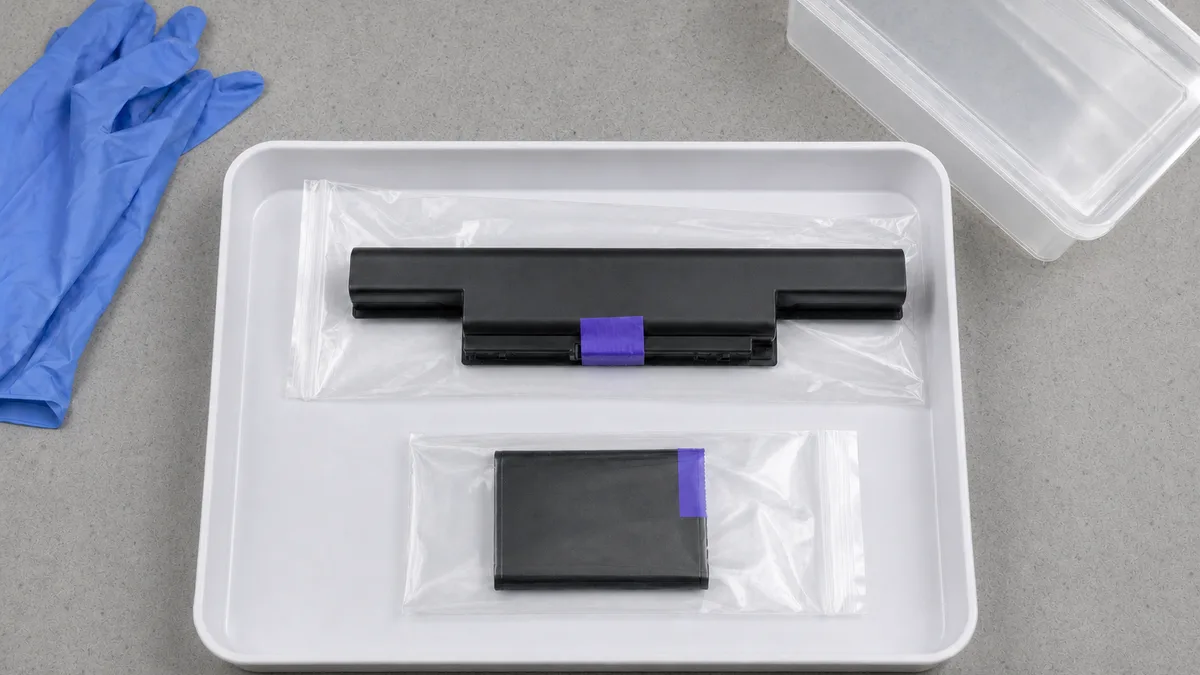
A laptop battery should not be mixed with household trash or stored indefinitely if damaged. Follow the manufacturer guidance and use an appropriate lithium-battery disposal channel.
Crezendo maintains a separate guide on lithium battery recycling in Panama. Acceptance of a device or component by Crezendo is evaluated case by case; this page does not imply that damaged batteries are accepted.
If you do not want to perform the repair yourself
Opening the computer is not a requirement for being technically capable. If the service manual requires steps you cannot perform reliably, the battery is swollen, or the laptop contains critical information, qualified service may be the more reasonable option.
Crezendo maintains technical training areas, but this guide does not announce a permanent battery-replacement service and cannot guarantee that a particular repair is viable. Review the current workshops or contact Crezendo about a specific need.
Checklist before buying a replacement
- exact model identified;
- battery diagnosis performed;
- no swelling or damage requiring special handling;
- service manual located;
- backup verified;
- part number and compatibility confirmed;
- appropriate tools and procedure available;
- plan for the removed battery.
The objective is not to prove that anyone can replace every battery. It is to decide whether that battery, in that laptop, following that model's documentation, can reasonably be replaced.