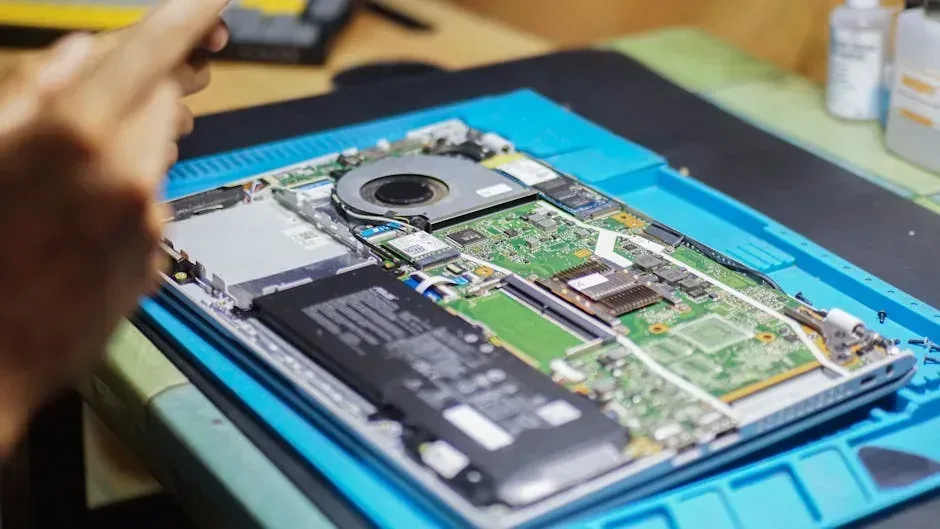
You want to donate your phone or laptop. But there's a problem: it has years of photos, saved passwords, open emails, banking data, private conversations. The thought of a stranger seeing all that stops you.
Understood. It's a legitimate concern. And it has a solution.
This guide walks you step by step through wiping all your personal information before donating. And if you don't want to do it yourself, Crezendo does it for you.
Before you start: what to do on ALL devices
Regardless of what device you're donating, there are universal steps:
1. Back up your data Before erasing anything, make sure you have copies of what you want to keep. Photos to Google Photos or iCloud. Documents to Google Drive or a USB drive. Contacts synced to your account.
2. Sign out of your accounts Log out of all important apps: Google, Apple ID, email, social media, banking apps. Deleting the app isn't enough — you need to sign out.
3. Turn off Find My / Find My Device Both Apple and Google have tracking features that lock the device if not properly deactivated. If you don't turn them off, the next user won't be able to use the device.
iPhone / iPad: step by step
1. Unpair your Apple Watch (if you have one) In the Watch app on iPhone, go to your watch > Unpair Apple Watch.
2. Turn off Find My iPhone Settings > [your name] > Find > Find My iPhone > turn off.
3. Sign out of iCloud Settings > [your name] > Sign Out. This removes your account from the device.
4. Erase all content Settings > General > Transfer or Reset iPhone > Erase All Content and Settings.
5. Confirm The phone will restart and be like new from the factory. Ready to donate.
Android: step by step
Steps vary slightly between Samsung, Motorola, Xiaomi, etc., but the general process is the same:
1. Turn off Find My Device Settings > Security & Privacy > Find My Device > turn off.
2. Remove your Google account Settings > Passwords & accounts > select your Google account > Remove account.
3. Disable screen lock Settings > Security > Screen lock > select "None." This prevents the next user from needing your PIN.
4. Factory reset Settings > System > Reset > Factory data reset (or "Erase everything").
5. Confirm The phone will restart completely. When it turns on, it'll be as it came out of the box.
Windows laptop: step by step
1. Sign out of everything Microsoft Office, OneDrive, email, browser. Sign out of all your accounts.
2. Unlink licenses If you have an Office license linked to your account, unlink it from office.com.
3. Windows 10/11: Reset this PC Settings > System > Recovery > Reset this PC > Remove everything.
4. Choose "Data erasure" When asked how you want to reinstall, choose the option that removes data more thoroughly (it may take longer but is more secure).
5. Manual wipe if you prefer If you don't trust Windows reset, you can:
- Boot from a Windows installation USB
- At the installation screen, delete all disk partitions
- Create a new partition and reinstall
Mac: step by step
1. Sign out of iCloud System Preferences > Apple ID > Sign Out.
2. Turn off Find My System Preferences > Apple ID > iCloud > Find My Mac > turn off.
3. Unpair from Apple Music / iTunes Open Music or iTunes > Account > Deauthorize this computer.
4. Erase everything If you have macOS Monterey or later:
- System Preferences > Erase All Content and Settings
- Follow the instructions — similar to the iPhone process
If you have an older version:
- Restart in Recovery mode (Command + R at startup)
- Open Disk Utility > select your main drive > Erase
- Format: APFS or Mac OS Extended
- Reinstall macOS
5. Don't set anything up after reinstalling When the Mac turns on and shows the welcome screen, shut it down. The next user will complete the setup.
"What if I don't want to do any of this?"
Valid option. Crezendo can do it for you.
When we receive a donated device, one of the first steps is a complete wipe. We format drives, perform factory resets, and remove all accounts. No personal data remains accessible.
If you'd rather not touch anything, donate the device as-is. We handle it.
A point of reassurance
Data wiping is a standard, reliable process. A factory reset on a modern phone encrypts and overwrites data in a way that makes it unrecoverable. On laptops, a full disk format eliminates all information.
There's no scenario where "someone recovered my photos after a reset" if you follow the steps correctly. And when Crezendo does it, we apply wiping standards that exceed what the default factory reset does.
How to donate after wiping
Once your device is clean:
In Panama City: We arrange pickup.
In the interior of the country: Ship via courier.
From abroad: Our Miami address:
Alejandro Sánchez / RE577 15421 SW 26TH TER - RE577 Miami, FL 33185-4866 United States Phone: +1 305 848 1127
Message us on WhatsApp to coordinate.
Your information is safe. Your donation matters. Go ahead.