A laptop that will not turn on triggers a mix of frustration and worry. Before thinking about buying a new one or assuming your data is lost, there are concrete steps you can follow to identify the cause. Often the problem is smaller than it seems and can be solved in minutes without specialized tools.
Step 1: check the power source
The first suspect should always be the power cable. Make sure it is firmly connected to both the laptop and the wall outlet. If your charger has an indicator light, check whether it turns on when plugged in. Try a different wall outlet that you know works.
If you have access to another compatible charger, use it. Many "won't turn on" issues are actually caused by a defective charger that does not deliver enough voltage. The physical connector fitting is not enough: the adapter must deliver the correct power.
Step 2: remove the battery if possible
On laptops with a removable battery, unplug the charger, remove the battery, and hold the power button down for 30 seconds. This drains residual electricity from the motherboard. Then connect only the charger, without the battery, and try to power on.
If it turns on with the charger but without the battery, the battery is the problem. You need to replace it. If it still does not turn on, we rule out the battery as the only cause.
Step 3: watch for lights and listen for fans
When you press the power button, pay attention to any sign of life:
- Does any LED light blink?
- Do you hear the fans spin for a second?
- Is there any beep sound?
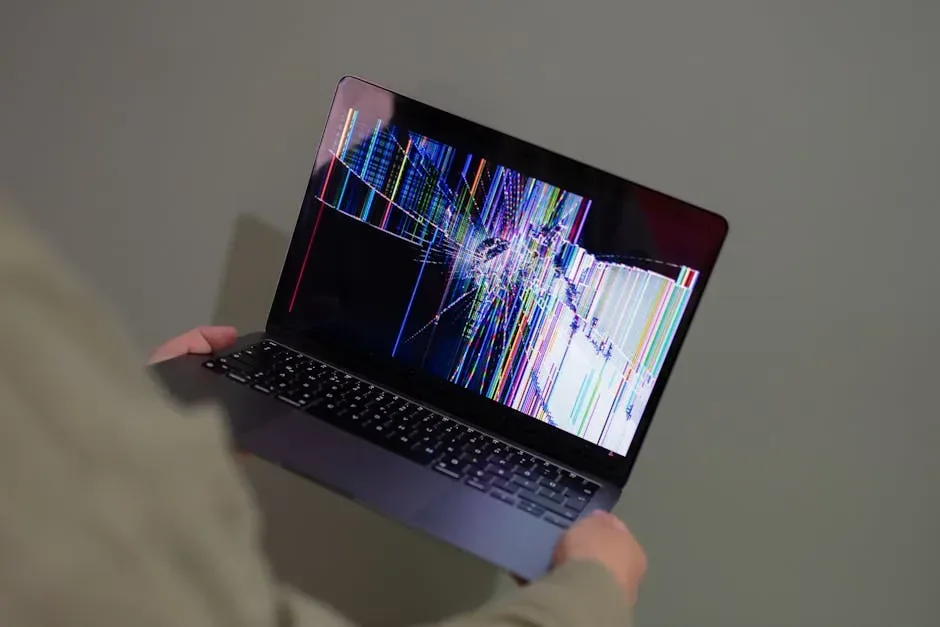
If there are lights or sounds but the screen stays black, the problem is likely the screen, the video flex cable, or the graphics card. If absolutely nothing happens, the issue usually lies with the motherboard or power circuit.
Step 4: test with an external display
Connect an external monitor using HDMI or whatever video port you have available. Turn on the laptop and press the display switch key, usually combined with the Fn key. If you see an image on the external monitor, the laptop is working but its internal screen is damaged. That is a localized repair and much cheaper than replacing the entire machine.
Step 5: remove peripherals
Sometimes an external device causes a short circuit that prevents booting. Disconnect everything: USB mouse, flash drives, external hard drives, printers, and any SD memory cards. Try to turn on the laptop with nothing connected. If it boots, reconnect devices one by one until you find the culprit.
Step 6: check for overheating signs
A laptop that got too hot can enter thermal protection and refuse to turn on. If you left it running on a pillow or in an enclosed space, wait an hour for it to cool down. Then try again. For the future, always use a ventilated stand or a flat table that does not block the air vents.
Step 7: advanced hardware reset
Some laptops have a small pinhole on the bottom with the symbol of a circle with an arrow. With the laptop off and unplugged, insert a straightened paper clip and press for 15 seconds. This performs a low-level hardware reset. Check your specific model's manual, since not all brands include this button.
Step 8: decide if you need a technician
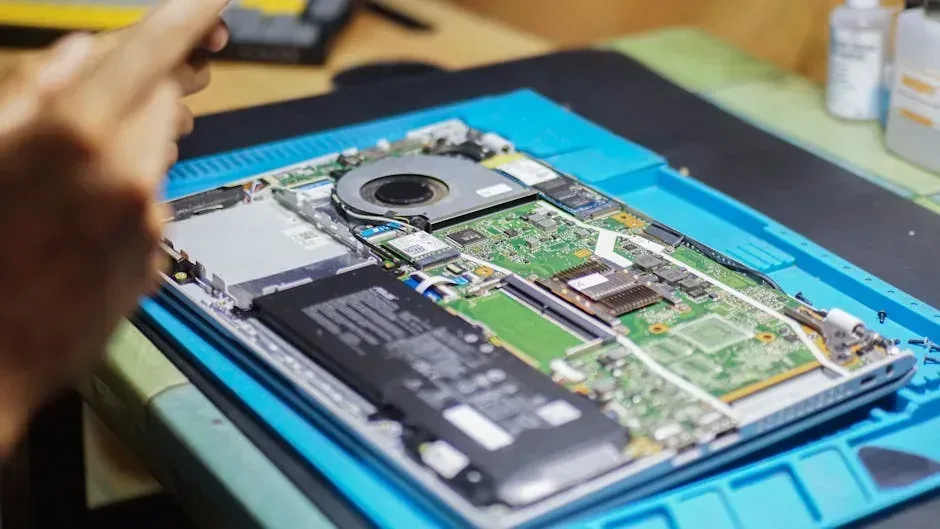
If after these steps the laptop is still completely dead, there is likely damage to the motherboard, charging circuit, or voltage regulator. These repairs require a soldering station, microscope, and electronics knowledge. Do not attempt to open the motherboard if you lack experience, as you can make the damage worse.
When to repair and when to move on
Motherboard repairs can cost between $80 and $250 in Panama, depending on the brand and damage. If your laptop is over five years old and the processor is already outdated, it might be smarter to invest that money in a used mid-range machine. If the laptop is relatively new or contains valuable unbacked data, repair is usually worth it.
Many apparently "dead" laptops can get a second life with a focused repair or by replacing a simple component like the battery or charging cable. If you have a laptop that will not turn on and you do not know what to do with it, consider donating it to Crezendo. We accept laptops, phones, game consoles, tablets, and peripherals in any condition. Our technical team evaluates every device: some are repaired so under-resourced students can use them for their education, and those that cannot be recovered are disassembled responsibly to salvage their components. Your "dead" device can become someone else's learning tool.